

File Explorer
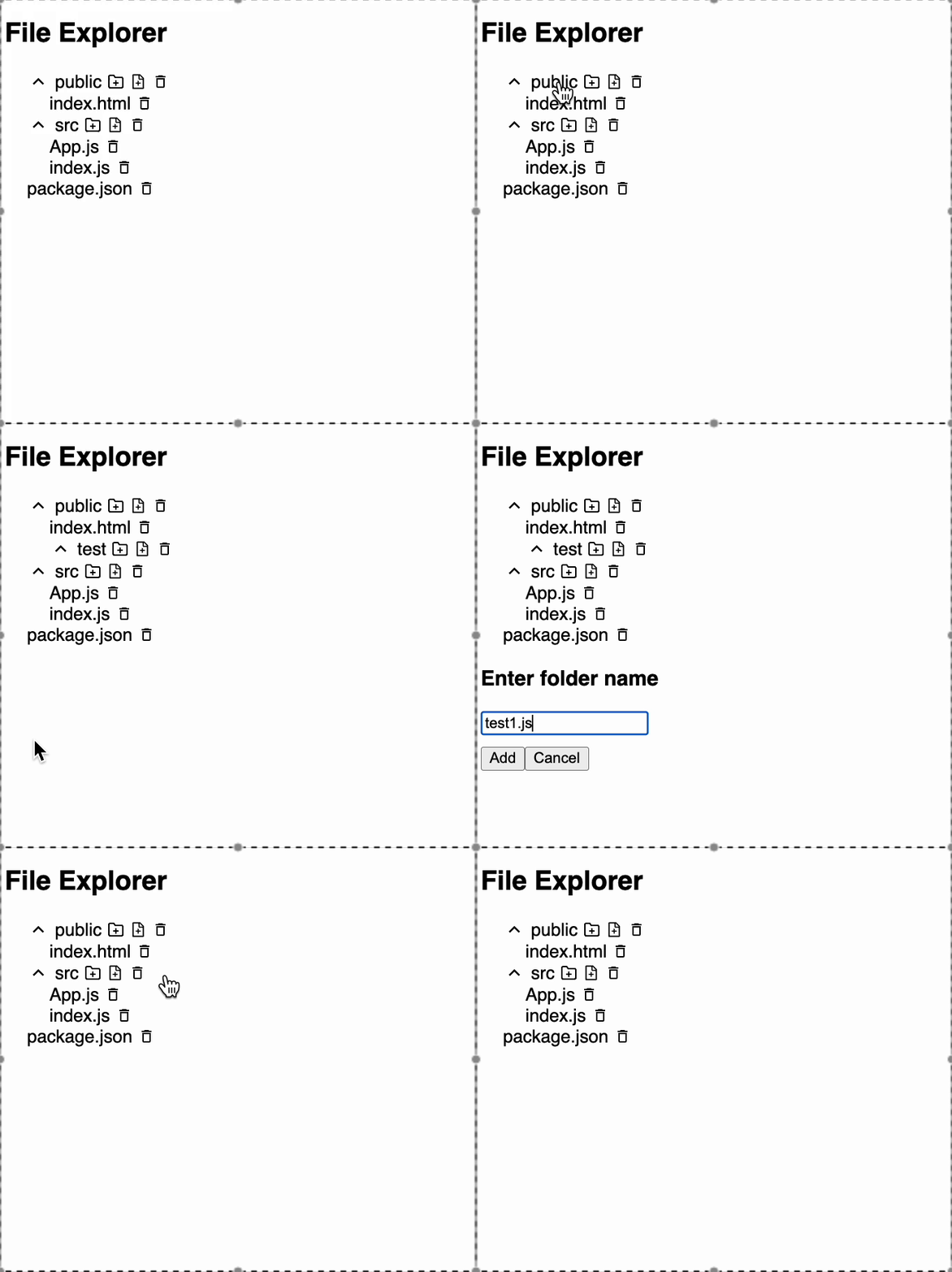
This project implements a dynamic and recursive file explorer component in React. It mimics the behavior of a typical file system viewer, where folders can be expanded or collapsed, and users can add or remove files and folders at any level of the hierarchy.
Key Features:
- Recursive Rendering: Folders can contain nested folders/files to any depth, handled with recursion.
- Expand/Collapse UI: Each folder has toggle icons (using
react-icons) to show/hide its contents. - Add Items: Users can add a file or folder inside any existing folder dynamically.
- Remove Items: Files or folders (and their children) can be removed instantly.
- State Management: The file tree is managed using React
useState, and state updates propagate through the recursive structure. - Minimal Styling: Clean, readable layout using inline styles and icons for better UX.
- Design a modal that appears when users click "Add Folder" or "Add File". The modal should contain:
- An input field (<input>) where users can type the name of a new file or folder.
- An Add button (<button>) to submit the name.
- A Cancel button (<button>) to close the modal without making any changes.
Icons Used
-
MdExpandMore– Folder collapsed
→import { MdExpandMore } from "react-icons/md" -
MdExpandLess– Folder expanded
→import { MdExpandLess } from "react-icons/md" -
MdDeleteOutline– Delete file/folder
→import { MdDeleteOutline } from "react-icons/md" -
FiFolderPlus– Add new folder
→import { FiFolderPlus } from "react-icons/fi"; -
AiOutlineFileAdd– Add new file
→import { AiOutlineFileAdd } from "react-icons/ai";
You need to ensure that data-testid attributes are added to the relevant elements .
- Add
data-testid="add"to the "Add" button inside the modal. - Add
data-testid="cancel"to the "Cancel" button inside the modal. - For the "Add Folder" icon, add
data-testid="add-folder-{id}", where{id}is the ID of the folder. - For the "Add File" icon, add
data-testid="add-file-{id}", where{id}is the ID of the file. - For the "Delete" icon, add
data-testid="delete"to each delete button.
Reference UI
Companies:
Solve Similar questions 🔥
Want to upskill? Explore our courses!

Namaste AI
Learn to build modern AI applications with real-world projects.

Namaste DSA
Master DSA from scratch with numerous problems, and expert guidance.

Namaste React
Wanna dive deep into React and become Frontend Expert? Learn with me now!
Namaste Frontend System Design
The most comprehensive and detailed course for frontend system design.

Namaste Node.js
Wanna dive deep into Node.js? Enroll into `Namaste Node.js` now!